Switch The Notification Alert Off

The feature in Facebook that is annoying most of the users is the notification alert. If you have a lot of friends who keep on commenting on photos or statuses, you might blow your ears off. Or if you are working and if you get a notification, the sound irritates you. In fact the sound even annoys me. Ever thought of switching off that sound. Here's the process
Click on the image for bigger view
notification alert, notifiacation sound, switch offnotification alert

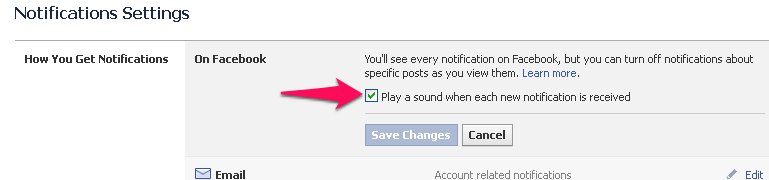
  • Go To Account Settings and then to Notifications
  • Under How you get notifications click on On Facebook
  • There untick the box.
That's it, you're done. Had any problem? Feel free to ask.
Read More »

Manage The Notifications That You Get From Groups

Restrict The Notifications You Get From Groups
In my last I've mentioned about restricting the notifications that you receive to your email. Facebook groups are more prevalent these days. They help people of same mindset, ideas, views, talent or capabilities to share their ideas and thoughts. But the only problem with these groups is anyone can add you to any group without your approval. All you get is a notifications that you are added to that group. And if this notification is left unseen just because of the notifications that you get from your friends or if you don't care about notifications, there is no way that you are going to know that you are in a particular group. If any person in such group post, comment or like you get a notification. And your notification tab may get flooded just because of the notifications from these type of groups. So, I'm gonna explain about restricting the notifications that you get from groups in Facebook.
block notifications from group
Click On the Image For Bigger View

Here's the process
  • Go to 'Account Settings' and then to 'Notifications'.
  • There, click on 'Groups' under 'What You Get Notified'.
  • You are provided with the list of groups and the posts you are notified about.
 You are provided with three options beside each group you are in. Those three are 'Friends' Posts', 'All Posts' and 'Off'. If you select 'Friends' Posts', you are notified only about the posts that your friends post in the particular group. The same is the case with All Posts. If you choose 'Off', you are notified about any of the posts in the group.
  •  So, select the option that you wish.
Restrict The Notifications That You Get From Applications And Games
 Now, I know how much fed up you are with the notifications that people send you about games. They are annoying, So, the process is same as the above but there's a slight difference. The process is as follows
block games, block game requests
 
  • The process is same as above until the second step.
  • After that, Click on 'App Requests and Activity'.
  • There, unselect the apps that you would not like to get notifications from.
That's it. You're done. Any problem? Feel free to ask.
Read More »

Restric Facebook Notifications That You Receive Through Email

Most of the teenagers, of this generation, use Facebook and have a lot of friends on Facebook. So, when you get tagged in a pic, you get notification about every single activity on the pic like if someone comments on the pic. And the worst part here is every single notification is sent to your email and your inbox gets messed up with these emails and Facebook notifications. Well, this is the problem faced by most of the Facebook users including me. Well, you can get rid of these emails by restricting the notifications sent to your email. So, here's the process.
Click on the image for bigger view.
Here's the process
  • Go to Account Settings. Then to Notifications
  • Under 'How You Get Notifications' , Click on 'Email'.
  • After that, under 'You'll Receive' you are displayed the notifications that are sent to your email. There select the notifications that you'd like to receive.
  • That's it. You're done. There is no way that your inbox is gonna get messed up.
 So, this is a way in which we can control or restrict the Facebook notifications that are sent to our email.

Any problem with the above process? Feel free to ask.
Read More »

Facebook Plugins for your Blogger

Facebook, the topmost social networking site, is helping bloggers to increase their readers by providing them with many tools. In addition to the 'Like' button for your page, Facebook provides many other features which you may not know. Some of there are Send, Follow, Recommendation, etc. This post is about Facebook's plugins for blogs and websites and their advantages. These plugins help readers to like, comment, send, share the posts they like or follow the blogger or the blog or to sign up for your site with their Facebook site. Being a blogger you gotta be on-par with the social networking tools and plugins.

The following are the plugins provided by Facebook.

Like Button
Most of you might know about this plugin as, I think, this is the most used plugin. This button lets the readers to 'like' a post in your site. As with the Facebook posts, the post which (in your site) reader likes gets published in the reader's friends' newsfeed. The post is visible to all his friends and in this way it drives traffic to your site.

facebook plugin,like button
Send Button
This button helps readers to Send the content in yout site to their friends. This drives traffic as well.
facebook plugins, social plugins,
Like Button Vs. Send Button
The effectiveness of the 'Send' button is more when compared to the 'Like' button and the spread of the 'Send' button is less when compared to the 'Like' button. For instance, If I am one of your reader and I like a post, the post gets shared in my Timeline and all my friends will be able to see it. But there is no assurance that everyone of them will have a look at the post. But in the case of 'Send' button, I can send a personal message to one or a few of my friends and most of them might have a look at it.

Follow Button
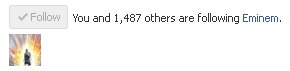
The Follow button replaces the Subscribe Button. This allows your readers to subscribe to your account directly from your site.
facebook plugins, social plugins,

A reader, who subscribes or follows you, will recieve your every single post in their newsfeed. So, if the reader responds to the post with a 'Like', 'Comment' or a 'Share', It gets published in his Timeline and this drives traffic to your site.

Comments
This plugin helps your readers to comment on any post in your site. If the reader comment's on your post, it gets published in his friends' newsfeed and this drives traffic to your site.
facebook plugin, social plugins

Activity Feed
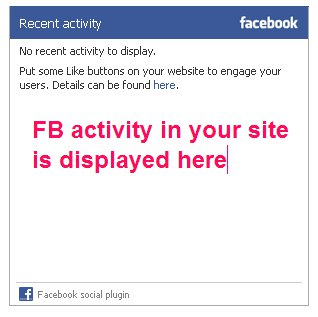
This plugin shows readers about the recent Facebook activity in your site. For example, if any of the readers comment, like, send or share any of your posts, the post will be visible in the Activity Feed box for other readers to see the post.
recent activity plugin, social plugins

Recommendations Box
This plugin gives users a personlized list of suggestions for the posts in your site they might like.

Recommendations Bar
This plugin allows readers to share and/or like the content and to get recommendations.

Like Box
This plugin enables users to like your Page in Facebook directly from the site. This buttons is quite different from the like button. Like buttons allows users to like a particular post in your site. On the other hand, Like Box helps users to Like your Facebook Page.

Registration
This plugin allows your readers to sign up for your website with their Facebook account.

Login Button
This plugin, in addition to the Login Button, shows profile pics of the reader's friends who already have signed up for your site.

Facepile
This plugin displays the Facebook profile pics of users who have signed up for your site or have liked your page.
Read More »

Image Optimization In Blogger To Drive Traffic

The main aim of any blogger is to get as many views as possible, I guess. Your images can help you get your more views. All you gotta do is just to put the keywords within the image. Here is the process. But read on till the last word.

About Titles and Tags
The Tags and Titles in the images, that you use in an image, describe about the image to the Google Search Engine bots as these bots cannot read the text on images. So, using these tags and titles you can get more traffic.

Image Tagging
Procedure-1
As soon as you upload an image, you get a code in the HTML. Change the code of the image as follows, adding alt="KEYWORDS" between. KEYWORDS is replaced by your keywords. For example, if the image is of Eminem, you can replace "KEYWORDS" by "slimshady,marshall-mathers". Still didn't get me. Well, go through the images. 
BEFORE
image-tagging,optimise-image,image-optimization,
AFTER
image-tagging,drive-traffic,image-optimisation,
Click on the image for a bigger view
This method, called as image tagging, can bring you a noticeable increase in amount of views by driving traffic.

Procedure-2
Still can't figure it out. Well, here's quite simple and direct process. In blogger, by clicking on the image, you get, options below the image. There, click on the 'Properties'. Now, you are prompted with a pop up asking you to enter the Title and Alternate Search Keywords through text boxes mentioned as 'title text' and 'alt text' respectively. Enter the title and the alternate keywords and that's it, you're done. Piece of cake, ain't it?
Click on the image for a bigger view


A few steps that might help you write alternate keywords for your image
  • Use main keyword while writing both title and tags. Take care that you won't make them same.
  • Do NOT write whole sentences. For example, if your post is about Image Tagging, do not make the tag as "use image tagging to get more views by driving traffic", break it into different but important parts, that will define your post, like "image tagging","drive traffic","image optimization". Hope you got it.
  • Do NOT try to tag a large number of words. Make the tags limited to three or four solid words.
So, that's it I can tell you for now. Keep visiting for new tricks and tools. Happy Blogging :D.
Read More »
 

© 2011. All Rights Reserved | Blogger Tricks 'N' Gadgets | Template by Blogger Widgets

Home | About | Top