Showing posts with label Windows 8. Show all posts

Samsung 5 Series Specs, Pros and Cons

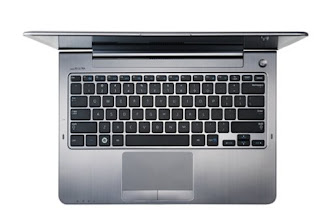
Samsung Series 5

The Samsung Series 5 (NP540u3C - A01IN) is a notebook with a screen that is large enough and a core i5 process. And, many of you might know, it has a touch screen which is great to use with Windows 8.
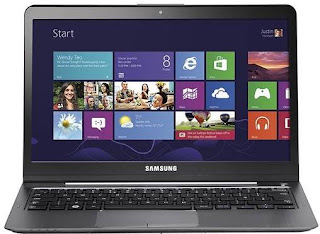
Pros
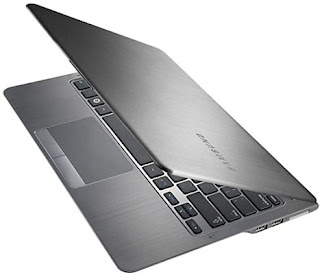
  • This one is well constructed. It boasts of a solid construction with a brushed metal look on its lid and around the keyboard. It has a tapering sharp edge at the front that contours on the side towards the screen to include USB, HDMI and LAN ports, a head phone jack and a card reader.
  • The laptop is very quick. From lid-up to login screen, it takes less than 15 seconds to boot up. Keys on the keyboard are evenly spaced.
  • This laptop can do everyday computer jobs like playing FullHD videos, apps, image editing, office productivity, web browsing etc.
  •  Sound from the internal stereo speakers is loud. The preloaded Sound Alive audio software offers a range of equalizer settings to enhance the experience.
  • This works for an average of 6 hours on single charge. You can toggle the touchpad and touchscreen on or off from the settings menu's option.
  • It's resolution (1366x768) is an ideal match to its screen (13.3-inch). Display is perfect, colors are vibrant and its touchscreen responds promptly and accurately to taps and swipes.
Cons
  • The screen of this Samsung Ultrabook is glossy. It retains fingerprints and stains and its reflectiveness effects visibility in bright environments. Most of the viewing angles are terrible. The display looks washed out if you watch it in any other position than looking straight in front.
  • This is too heavy weighing around 1.8kgs.
  • This premium notebook hasn't got a backlight for keyboard and it has just one USB 3.0 port and the other two are 2.0 versions.
Specs
  • 13.3-inch screen, 1366x768
  • 1.7GHz dual-core Intel core i5-3317U
  • 8GB DDR3 RAM, 24GB SSD, 500GB HDD
  • Wi-Fi, Bluetooth, 1x3.0USB port, 2x2.0 USB ports
  • HDMI, VGA, Ethernet, 3-in-1 card reader
  • Webcam - 720p HD, Stereo Speakers, Inbuilt microphone
  • Operating System - Windows 8
Read More »

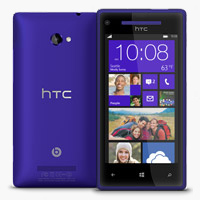
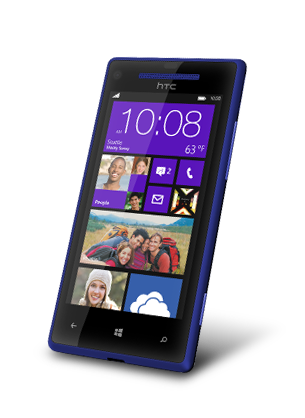
HTC 8X Review, Specs, Pros and Cons

Here comes another device that you would love to have. Its the HTC 8X. Well, starting with the operating system, it runs on Windows Phone 8 (WP8). The WP 8 is a work of art and this device is a perfect representation of what Microsoft is bringing to that market with its updated mobile OS. Just like the previous versions WP 8, looks beautiful using simple fonts and lines to create a simple 2D user interface that's defined by lots of square boxes that Microsoft call tiles. These so called tiles, which replace icons, are much bigger and can also display nuggets of information. For example, the Mail tile can show number of unread emails.

This one scores on design, both in hardware and software. Windows 8 is a beautiful and intuitive for people who didn't use smartphones and are using them for the first time. For Windows 8 PC users, this handset will offer tight integration especially with cloud services like SkyDrive, the People app, etc. If you're looking for a phone with great camera, this is definitely not it. The app store doesn't compare to that of iOS or Android. Power users will be unsatisfied with the lack of robust notification system and proper multitasking. Overall, this phone falls short of comparably priced phones like Samsung Galaxy S III or the HTC One X.

Pros
  • This is a stylish handset. The most beautiful part about this phone is its tapered edges. This makes it look slimmer than it actually is. Build quality is top class and the phone feels premium.
  • The 2.1MP front cam has an ultra-wide lens. If you video chat very often, you will love how much it can accommodate in its scope.
  • WP8 is fast. There is no lag when you open apps or fire up the camera. Web-browsing is smooth, Maps app, for which Microsoft is using Nokia's data in India, is detailed and covers all well-known areas.
  • The design and interface in WP8 is unique and beautiful. It is also quite intuitive and apps like Mail, SMS or People (contacts) are easy to use.
Cons
  • While WP 8 is a define improvement over WP 7.5, in many ways it remains the same old OS. It still lacks a proper multitasking system. 
  • The apps, barring a few like Music and SkyDrive, don't run in the background. In WP 8 apps are suspended. In other words, they are paused. For apps like Rowi, which are supposed to run continuously to keep you updated with tweets, it doesn't work.
  • There is no proper notification center in WP 8. The home screen is limited to show notifications from six apps - and to see or clear these notifications, user has to go into those respective apps.
  • Only handful of apps and games when compared to those available on iPhone or high-end Android phones.
  • The battery life is average. On 3G, the phone lasts for around 9 to 10 hours when used for making an hour call, some gaming, email, Twitter and some photography.
  • The primary shooter is below average. The pictures captured through 8X had excessive smoothening and lack details.
Specs
  • 4.3-inch SLCD-2 Screen
  • 1280x720 pixels, 342 ppi
  • 1.5 GHz dual-core CPU, 1GB RAM, Micro USB v2.0
  • 2.1 MP front cam, 1080p FullHD video, 8MP primary cam, 1080p FullHD video
  • GPS, A-GPS, Bluetooth v3.1, 3G, Wi-Fi, NFC
  • Micro-sim, No microSD card slot
  • 1800mAh battery, 9-10 hours of average usage
  • Windows 8
Read More »

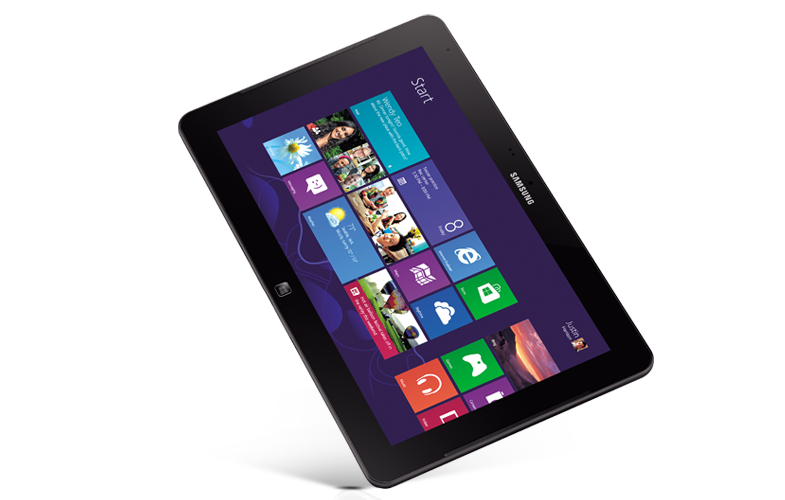
Samsung ATIV Smart PC Pro Overview and Specs

Samsung ATIV Smart PC Pro can be used as a tablet and notebook PC. Like many of Samsung's products, Samsung ATIV Smart PC Pro is constructed usingplastic, albeit with nice brushed metal-effect finish. Unlike the tablet, the keyboard is made of metal. The dock doesn't contain an extra battery. Well, this is a draw back as the powerful Pro tablet inevitably offers shorter battery life than its Atom sibling.
The Samsung ATIV Smart PC Pro is well-endowed when it comes to connectivity. The tablet itself has a headphone jack, full-size USB 3.0 port and microSD card slot. It even has a micro HDMI port for video output along with volume rocker on its left. The keyboard dock sports two more USB 2.0 ports. It hasn't got a full-size SD card reader.
Specs
  • 11.6" Touchscreen (1920x1080)
  • Windows 8 (OS)
  • Intel Core i5/PDC/Celeron
  • Intel HD Graphics 4000
  • RAM 4GB DDR3
  • 5MP Rear Camera, 2MP Front Cam, 2 Speakers
  • 8hours average Battery Life, Video Playtime 5hours
  • Wireless LAN, 3G, Bluetooth
  • 304mmx189.4mmx11.89mm
Read More »

Samsung ATIV Smart PC Overview and Specs

Samsung ATIV Smart PC can be used with Windows 8. This is a versatile, quick change tablet. just place it on the magnetic base and you have all the capabilities of a laptop. You can watch eight hours of video on single charge. It comes with the S Pen. So, you can make notes, draw and edit pictures on the go on your tablet. With preloaded Samsung apps like All Share Play, Music Hub and S-Note you can access all of your media from any of your Samsung devices.

It has quite a big screen, which measures diagonally 11.6". Its a perfect tablet. Its a bit thicker and heavier when compared other Windows 8 tablets. Like all other Windows 8 PCs, it comes with clamshell keyboard. The Samsung ATIV Smart PC has the new Clover Trail Atom CPUs.
Specs
  • 11.6" touch screen (1366x768)
  • Windows 8 (OS)
  • Intel Atom Processor Z2760
  • Intel Graphics Media Accelerator
  • 8MP Rear Camera, 2MP Front Camera, 2 Speakers
  • RAM 2GB LPDDR2, HDD 64GB/128GB
  • 11.97"x7.4"x0.39"
  • 1.16lbs (tablet), 3.1lbs (with keyboard)
  • Bluetooth, Wireless LAN, 3G
Read More »

Upcoming Gadgets with Windows 8

Surface


Touted as the flagship device for Win 8, this hybrid tablet/PC has been designed by Microsoft Surface sports a sleek design, with a hinge at the pops out to prop the tablet on a table. It can also be paired with a cover that doubles up as a keyboard with touch buttons.

Specs
  • 10.6 inch screen (1366x768)
  • 1.4GHz quad-core Tegra 3 CPU
  • 2GB RAM
  • 32GB/64GB storage
  • Front and Back 720p HD cameras
  • Wi-Fi, Bluetooth-4
  • 2X USB 2.0, microSD card slots
  • Up to 8 hours battery life

Dell XPS One 27
This all-in-one computer from Dell comes with a touchscreen, which makes it a perfect companion to Windows 8. The XPS one 27 is not the Windows all-in-one, but is one of the first. Dell has gone all out with the top notch components, making it a very powerful computer despite its sleek and slim design.


Specs
  • 27-inch Touchscreen (2560x1440)
  • Intel Core i7 quad-core processor
  • Up to 16GB RAM
  • Up to 2TB HDD
  • Nvidia GEForce GT 640M Graphics
  • DVD-RW or Blu-Ray drive
  • Wi-Fi, Bluetooth
  • 6x USB 3.0, Ethernet Ports, multi-format card readers

Read More »

A Quick View : Windows 8

Microsoft launched Windows 8 on Friday. Microsoft wants to ensure that its new OS runs on all form factors such as PC's, Tablets etc.. Microsoft foresees people using a common OS, seamlessly interoperating between different devices without any glitches. It also envisions gadgets that can function as a tablet or laptop depending on the users requirements. It works with Mouse and Keyboard as well as Touchscreen. Most of you know about this feature I guess. For this purpose, Microsoft had to make some big changes to Windows.

Log In
Windows 8 is heavily integrated with Microsoft's web services. Users are provided with an option to log on to their PS's with a Windows Live ID, instead of a Local Users Account, for seamless functioning between various devices. For instance, if you are following certain news feed in the reader app on your Tablet, the same content will also be available on your PC. Cool, ain't it? Besides, you are automatically logged-on to those metro-style apps and services that use your Live ID for authentication.

The Modern User Interface
In one of the most radical changes to Windows in the last 28 years, Microsoft has introduced a new tile-based user interface known as the Modern UI. You might have seen this tile based UI on Windows phone. This interface lends itself to operations with a touchscreen.

Each app shows up as a tile on the 'Start Screen'. These app tiles are also capable of displaying dynamic updates. For instance, the News app will scroll through headlines while the People app will display latest updates from your social networks. Even Control Panel settings and Network Connections are handled through this new interface.

Desktop
There are two changes that Microsoft has made to the Desktop feature in Windows 8. First, it can now be accessed through a tile on the Modern UI. Second, the 'Start' button is no more! Instead, users have to move the cursor to the bottom-left corner of the screen, or press the Windows Key on the Keyboard to access the 'Start Screen'. In the Desktop mode, users will be able to run all the software they have always used in Windows. New programs will show up as a shortcut on the 'Start Screen'.

Gestures - Touchscreen
Since the Operating System is supposed to run on tablets, the Modern UI is designed to work with gestures such as pinching in and out for zooming in and out, scrolling through apps with a swipe of a finger
A few operations that can be done using Touchscreen
  • Pinch and Stretch to Zoom in and out. Get a global view of everything that's on your screen, and slide back and forth to find what you're looking for.
  • Swipe in from the left to switch between recently used apps.
  • Swipe in from the right to get back to Start and to other things you do often, like searching, sharing, changing your settings etc.
  • Swipe in from the bottom to see navigation controls for any app you're in.
You can easily do all these things with a mouse, too.

Apps
Windows 8 comes with its own app store, like iTunes store and the Google Play, where you can download and install apps. Of course, the store will be limited to Modern apps. Other apps and software will have to be procured and installed like how it's always been done.

Task Manager
Microsoft says that 85% of Windows users only bring up the 'applications' and 'processes' Task Manager to check which program is using up system resources and to close that are 'Not Responding'. So Microsoft decided to make this easier with a revamped Task Manager that displays a simple list of the programs that are running on your PC with a handy 'End Task' button. More details like Services, App History, Startup etc. are available, if needed.

Refresh and Restore
If a PC seemed sluggish, the old solution was to format the C Drive and re-install the OS, but Windows 8 gives users the option to go back to default settings by merely clicking the 'Refresh' option in the Settings menu. You don't loose any of your personal data in this. And in case this doesn't work, consider the restore option, which wipes the hard drive and re-installs Windows 8.

File Copy
File Copy now comes with buttons to pause, resume and stop the file transfer, and provides details on copy speed too.

Installing Windows 8?

Before that just read this. Right now, most users don't need to upgrade to Windows 8. But if you're buying a laptop or desktop, then sure, go for it. If you use a touchscreen PC running Windows 8, then definitely upgrade to Windows 8. Also, if you are currently considering a new notebook PC, it might make sense to wait a few months till new models with touchscreens enter the market.
Read More »
 

© 2011. All Rights Reserved | Blogger Tricks 'N' Gadgets | Template by Blogger Widgets

Home | About | Top ▲